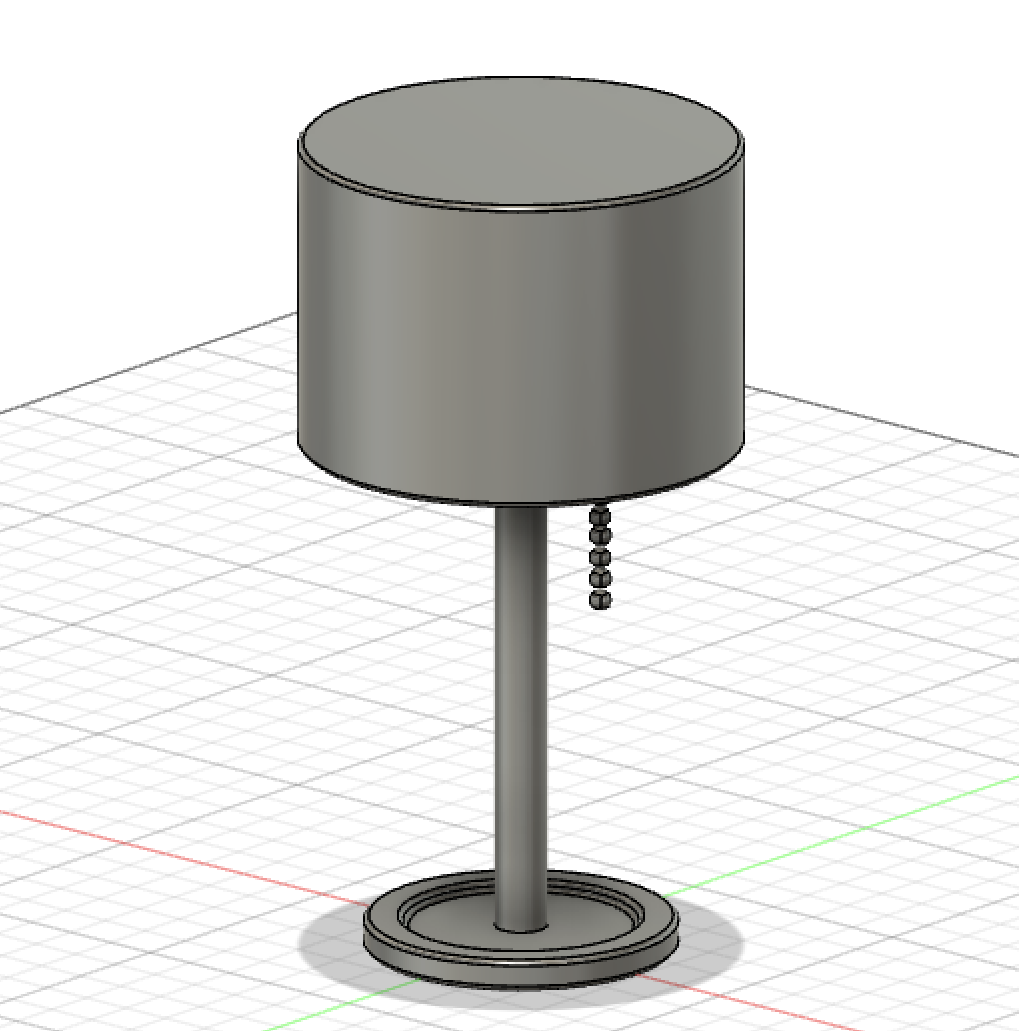
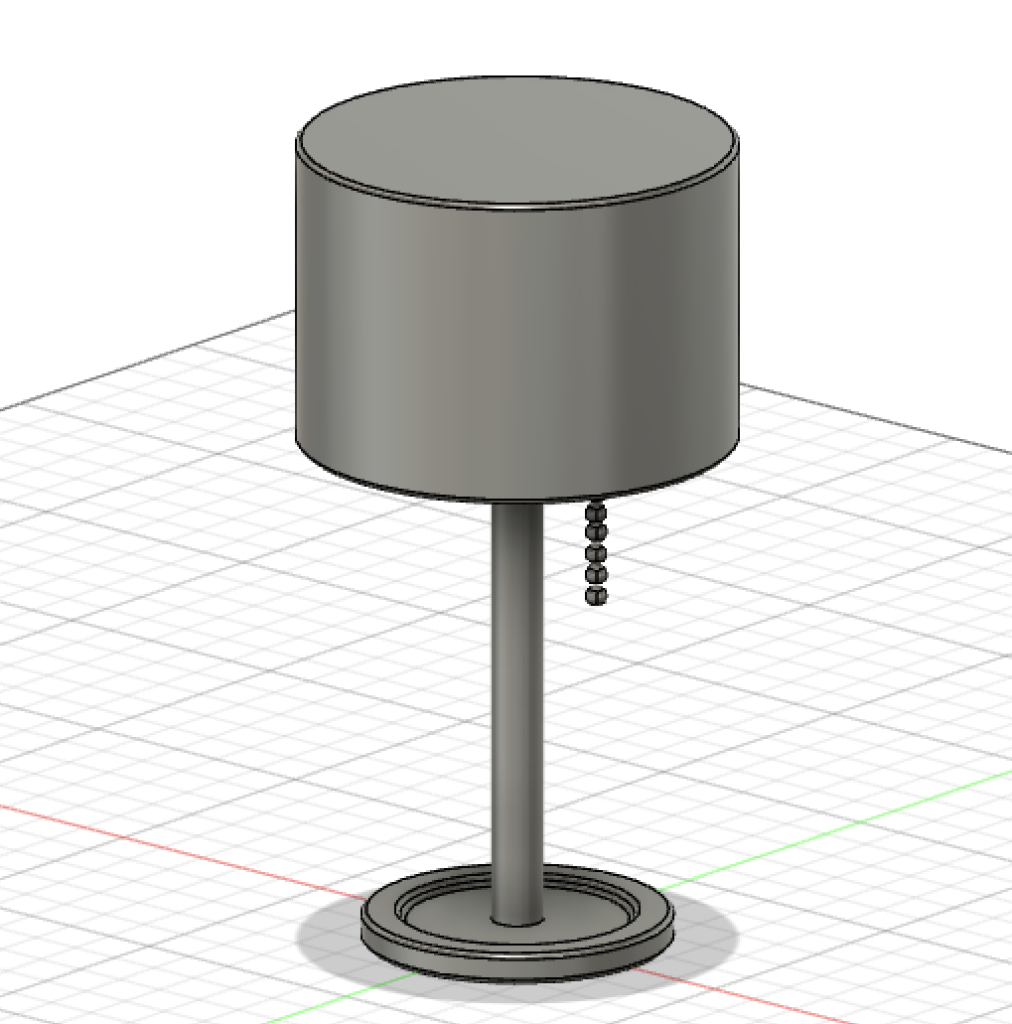
For our first digital humanities lab, we used Fusion 360 to create a 3D model of an object we know well. I chose to model my bedroom lamp. Here are the results!
The Modeling Process
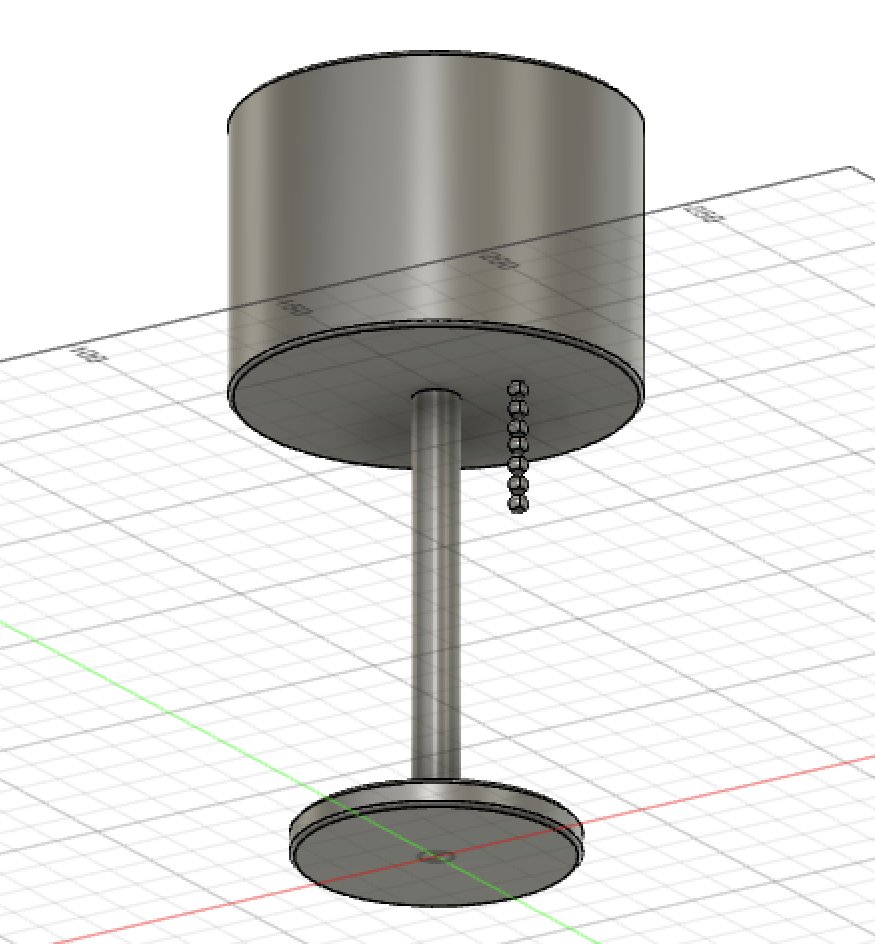
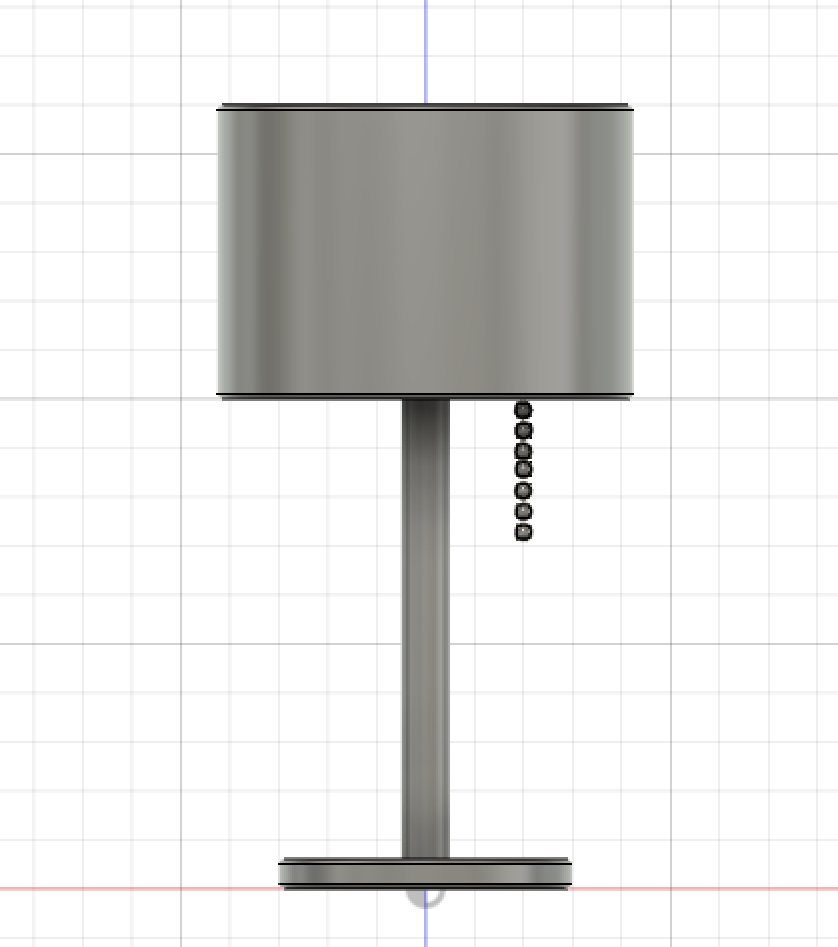
This modeling assignment was a little tricky at first, but it became easier the more time I spent on it. In the beginning, I had a hard time finding certain tools, but as I became more familiar with the interface and its features, I got into a nice work flow. Figuring out how to make the pull chain for the lamp was the hardest element to get down because it took me a while to figure out how to make a sphere and connect new objects to premade objects. I had to compromise on the top of the lamp. I tried to make the top of the lamp open (like an actual lamp is) by using the hole tool, but I couldn’t get the hole to match the radius of the lamp top so I had to keep the top and settle for a less realistic looking lamp.
Humanistic Uses
I can envision a lot of cool humanistic uses for the Fusion 360 modeling tool, especially in math, engineering, and architecture classes. For people who struggle with visualizing shapes and objects, this tool would be super helpful for creating and picturing everyday objects and forms in an effort to understand their angles, faces, and tangible features better. For things like modeling buildings, this 3D modeling tool provides the realistic perspective that is essential to designing and constructing buildings. I can also see how a tool like this would be very valuable for certain companies to employ in order to create sophisticated, realistic models of products to show their clients.
A Tip For Other Fusion 360 Novices
- The little hand icon at the bottom center of the screen allows you to move your model vertically or horizontally within your respective plane. This is helpful for positioning your model in a comfortable spot for making additions or changes.
- Some sketches are automatically hidden from view, making it seem like they have disappeared. To reveal all of your sketches, make sure to click the eye icon on the drop down menu on the left side of the screen. If the eye has a slash through it, it is currently hidden from view but the sketch still exists.
Props to you on the design, it looks great! The pull chain looks cool, I don’t think I would’ve been able to create it. You mentioned that the top of the lamp was supposed to be open in order for it to be more realistic but you compromised. This made me curious as to what I did differently because when I extruded my square to make it into a cube, both the top and bottom were open and I had to fill them in using another tool. I’m not sure what I did differently but if I could’ve done what you did, that would have saved me some time.