
For this assignment, I modeled a red WonderBoom 2 Bluetooth speaker. This task was definitely challenging, but in a good way. Even though this was my first time 3D modeling, I spent only a small amount of time looking up wholistic tutorials of the interface. I instead decided to set a few hours aside to just explore all of the different functions and design features in Fusion 360.

While exploring Fusion 360 and creating my model, there were a few things that bugged me as I tried to figure them out. One was how objects interacted with one another when trying to join them together. When making the front volume buttons, I created new sketches of the buttons to put onto the main speaker sketch, however when I tried to, it instead carved the shapes of the buttons into the main model instead of making shapes that protruded from it. It was much later that I found out there was either a ‘cut’ or ‘join’ option when moving a sketch into another sketch.
Another thing that I ultimately couldn’t figure out was how to change the dimensions of only certain parts of an extruded sketch. The actual WonderBoom 2 speaker is a funky cylinder that has a slight vertical curve to it. I made the main sketch as an extruded circle, and I couldn’t figure out how to make the middle part of the speaker wider than the top and bottom, as seen in the pictures below.
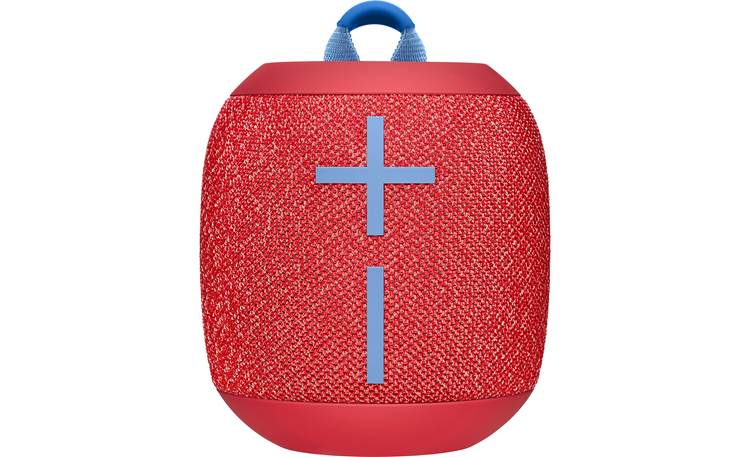
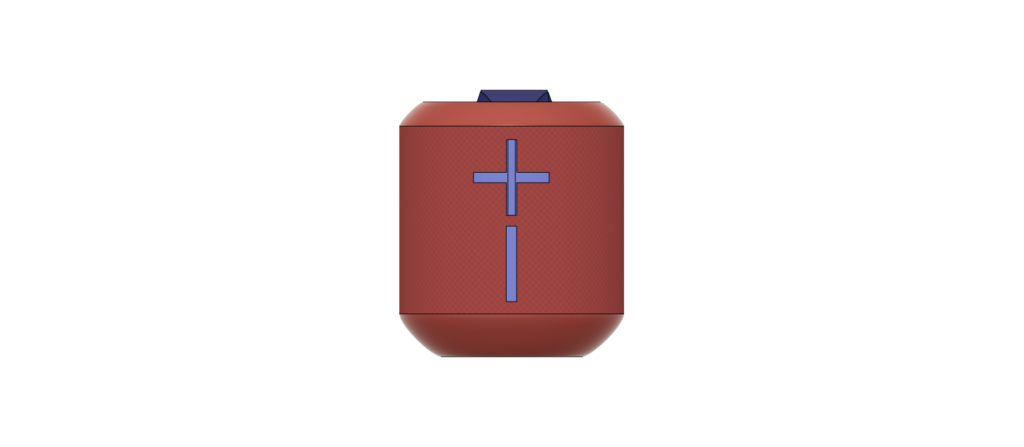
Fusion 360 could be useful with regards to providing an interactive experience with objects that one wouldn’t normally be able to interact with, whether it’s simply an object one person doesn’t have, or potentially a model of a building that only existed in the 1700’s. Fusion 360 is an interactive archive, which could be very useful in fields that aim to preserve history and ideas.
For any new Fusion 360 users, speaking as someone who has only touched Fusion 360 and 3D modeling for a few hours, the feature I found most useful was the ‘appearance’ feature. This allows you to change the material and color of individual faces and components of your model, and it becomes very useful when creating complex designs, as same-colored components can start to blend together and look very similar.
This is really impressive, I can’t believe this is your first time 3D modeling with Fusion. How long did it take you to get acclimated with the software? It was also my first time and I found it really hard to understand. Did you use any outside resources, or were you able to just figure it out by yourself?
Your model looks so realistic! I love how you brought color into your design, and it’s clear that you captured all of the details of the real speaker. I also liked how you compared the front view of the real speaker to the front view of your model – it made for a nice comparison and showed how close to the original your version looks.
Wow! This is so cool! I really appreciate how much you talked through your process, and how much detail you took the effort to put in. Like Maddy, I like the comparison you did to an actual speaker, it served as a really good base to your 3D creation. The feature I like the most is the texture you put on the side to imitate the texture on the Boom speaker, I couldn’t figure out how to do that, and it’s awesome to see how it can be used!
Hi Aaron, I love your model. The attention to detail with all the buttons and the addition of color and material was really admirable. I also had fun playing around with the appearance features, however, I was not as successful as you with your speaker model. Good Job!
Wow, this is a great model! I also had trouble with the sketches and the sketch making negative space rather than protruding out, it’s good to know that you found a solution for it because I never quite solved my issue. I’d also love to hear more about adding new shapes to curved surfaces, since it appears you did it well. Overall, I really like the realistic color and attention to detail- well done!
It is impressive that you can make something that looks very realistic as your first 3D model. I think spending more time exploring the software is a better strategy than watching tutorials, and I should do that next time. From your detailed description of the process, I can tell that you had made a lot of effort in making the details of the speaker, such as the buttons and the customized materials for each part. I encountered the same problem as you on adjusting the dimensions on certain parts. I couldn’t figure that out, so I had to compromise on my design.